 Basehand
Staff scheduling and time clock: Your team's week scheduled in minutes, and their hours ready for payroll.
Draft the week on one page, or ask the Hand to, and publish it to everyone at once. Your team clocks in from their phones or a tablet at the counter, and each pay period's hours, overtime, and tips come out ready for Gusto, QuickBooks, or OnPay.
7 days free. No card needed.
The schedule
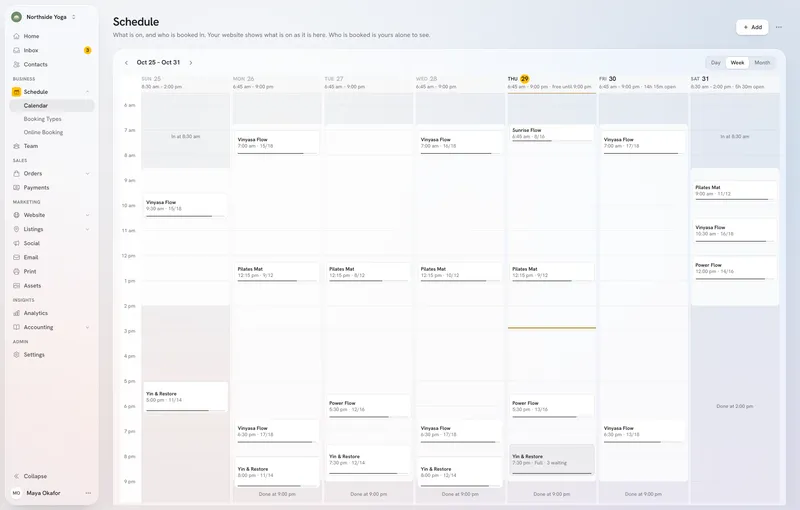
Draft the week, then send it to everyone
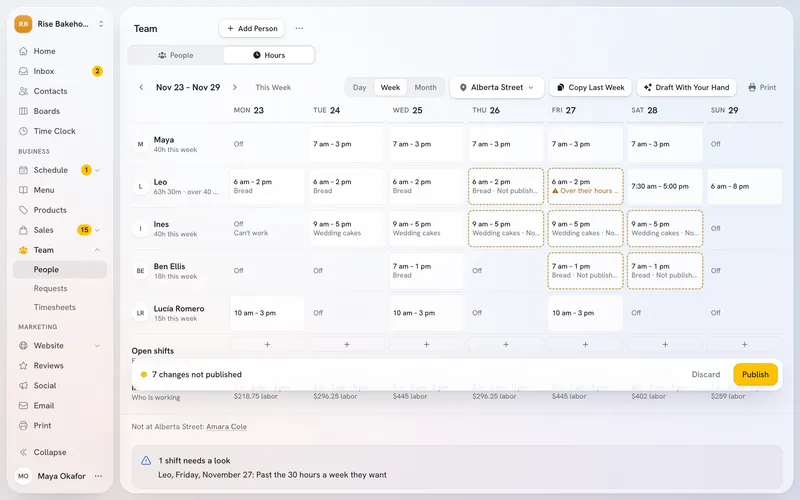
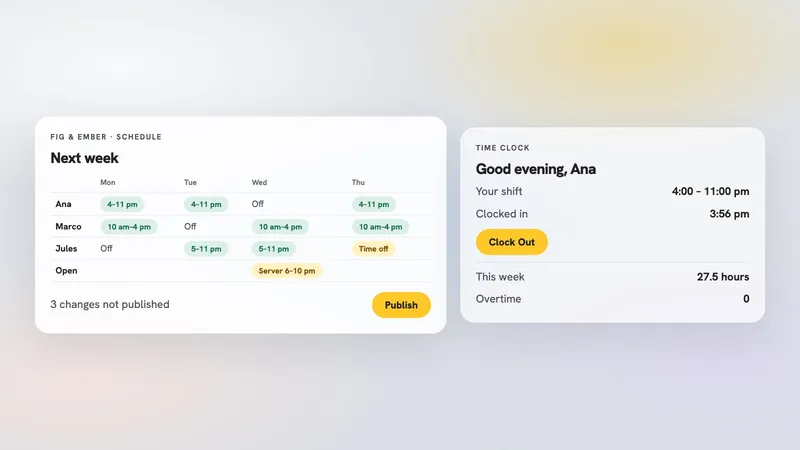
Your team's week on one page, by person and day. Add shifts from templates like Opener or Close, copy last week, or ask the Hand to draft it from who can work. Nothing changes for your team until you press Publish, and then each person is told about their own shifts.
- Open shifts anyone on the team can ask to take
- Each shift's role, unpaid break, and a note
- Each day's labor cost, for owners and managers
- The published week as a PDF to print for the wall
Who can work
Clashes caught before you publish
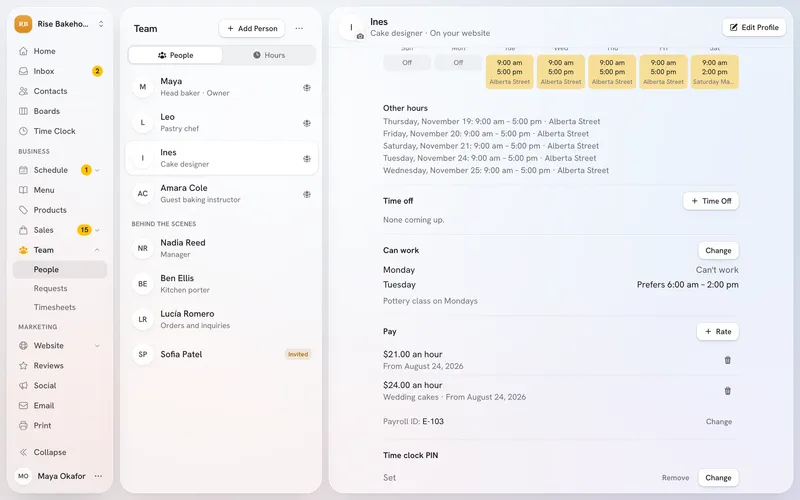
Each person says when they can't work, when they'd rather work, and how many hours a week they want. The schedule marks a shift that falls on time off, overlaps another, leaves too little rest after a closing shift, or goes past someone's hours, and lists them all above Publish.
- Warnings only: you decide
- The least rest between shifts, set to your own rule
- Managers told when someone changes when they can work
- Time off asked for and approved in the app
Swaps and time off
Your team trades shifts without a group chat
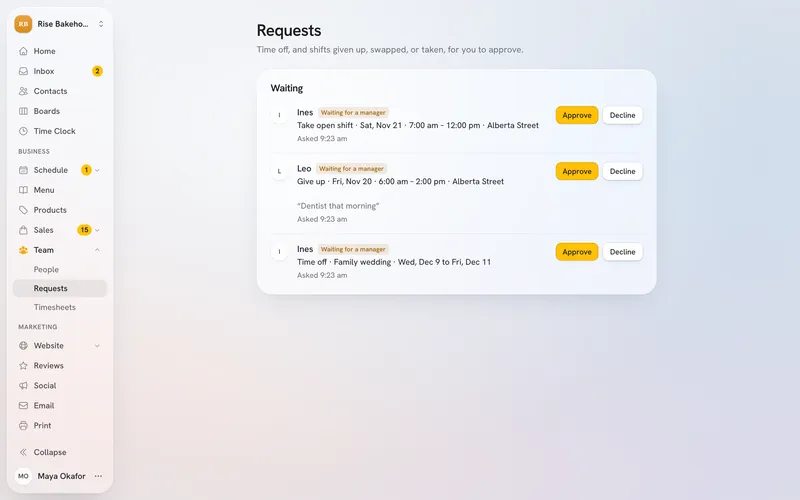
Staff ask for time off, give up a shift, swap with a teammate, or take an open shift from their phones. A swap waits for the teammate to agree, then for a manager, or goes through at once if you let the team trade among themselves.
- Every request on one page, to approve or decline
- Managers told of each new request
- Time off always approved by a manager
- Each person told when theirs is decided
Time clock
Clock in from a phone, a tablet, or a text
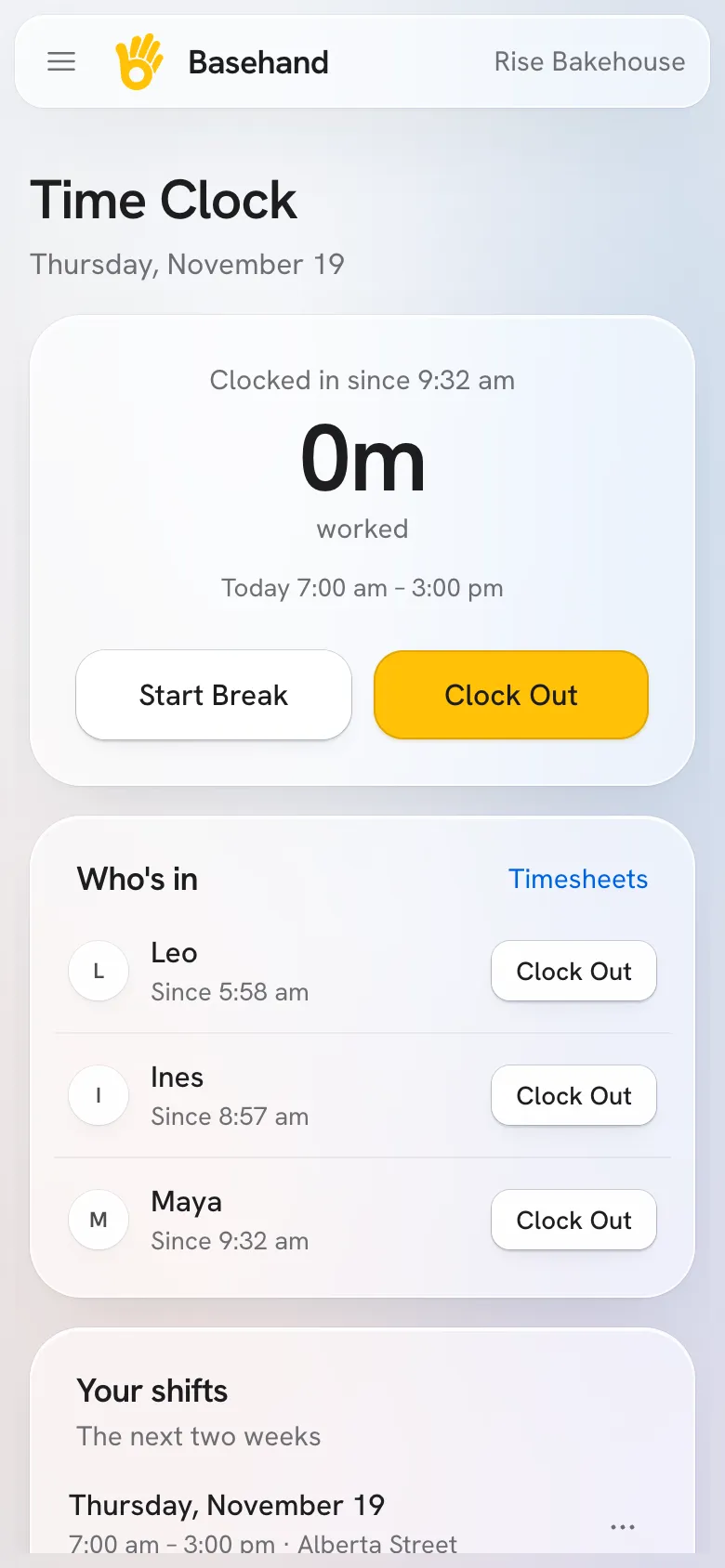
Staff clock in and out, and start their breaks, on the Time Clock page on their phones. A tablet at the counter can be the time clock, where each person types their own PIN. Or they text the Hand to clock them in.
- Clocking in too early before a shift stopped, as you set
- A time clocked far from your location marked for a look
- A reminder before each shift if you want one, and an alert when someone's late
- A time nobody clocked out of ended at the end of its shift
Timesheets
Hours, overtime, and tips worked out for you
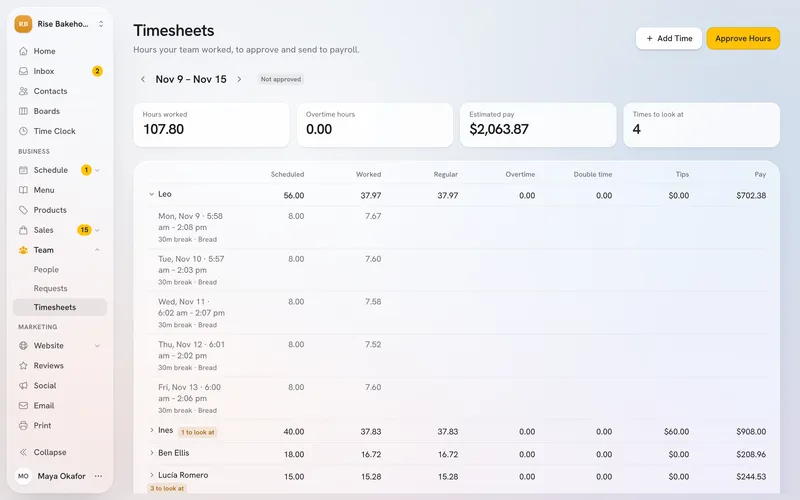
Each pay period lists everyone's times beside their schedule, with anything that needs a look flagged: late, away from the location, a missed meal break, or still clocked in. Overtime follows federal rules, plus the daily rules of California, Alaska, and Colorado. Fix a time, then approve the period to lock it.
- Pay periods weekly, every two weeks, twice a month, or monthly
- Cash tips declared at clock-out, card tips from your orders
- Every change to a time kept in its history
- Pay rates by person and by role, seen only by owners and managers
Payroll and labor cost
Hours ready for Gusto, QuickBooks, or OnPay
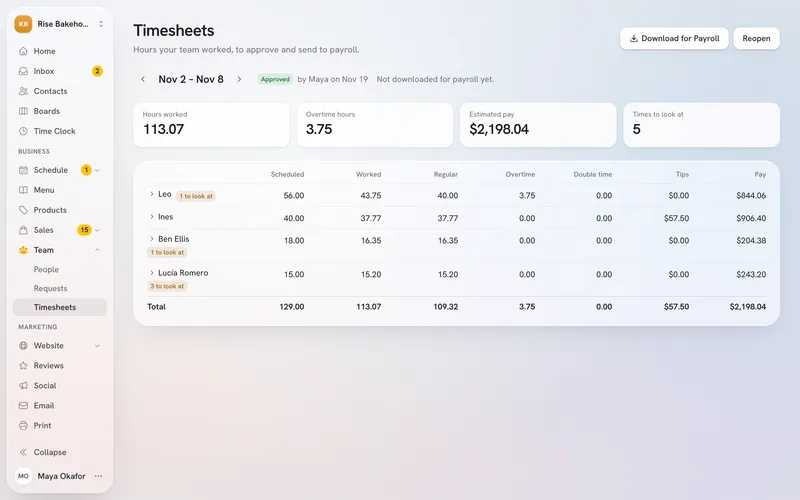
Download an approved period by person, with regular hours, overtime, double time, tips, and estimated pay, or by day with each time. Your payroll provider's import reads it. The Labor vs. Sales report sets what your team costs against what you sold, day by day.
- Each person's payroll ID in the file
- Labor as a percentage of sales, and sales per hour
- Scheduled cost beside what was worked
- Your payroll provider connected directly isn't offered yet
And the rest
More that comes with the team tools
-
Your Hand drafts the week
Ask for next week and it drafts it from who can work and the weeks before, for you to look over and publish.
-
Shift templates
Save the shifts you give often, like Opener or Close, and add one with a press.
-
The week for the wall
The published week as one landscape page, ready to print.
-
Told the way they choose
Published shifts, requests, and reminders by email or text, as each person picks.
-
Pay kept private
Only owners and managers see pay rates and what the hours come to.
-
Bookings follow the schedule
Customers book only the people who are working, as the schedule was published.



From the Handbook
Practical guides on the same job, whatever tools you use.
-
Your business
How to make a staff schedule your team will actually follow
A schedule your team can rely on is a weekly routine, not software: ask before you draft, publish on the same day, set simple swap rules, and record time to the minute.
Questions
What owners ask about scheduling and the time clock
Does it connect to Gusto?
Not directly yet. Download an approved period by person and import it into Gusto, QuickBooks, or OnPay. Each person's payroll ID goes in the file, so their hours match up.
Do my staff need their own login?
To see their shifts, ask for time off, and swap shifts, yes: they sign in to Basehand on their phones. To clock in, they can also use a shared tablet at the counter with a PIN, no login needed.
Can it stop people clocking in from home?
It marks a time clocked far from your location for you to look at, but never refuses it. You can stop people clocking in too long before their shift.
How is overtime worked out?
Over 40 hours in a workweek anywhere in the US, plus California's daily overtime, double time, seventh day, and missed meal break pay, and Alaska's and Colorado's daily overtime. Outside the US no overtime is worked out, and your payroll provider applies your country's rules.
Who can see what people are paid?
Owners and managers. Staff see their own shifts and times, and accountants see the books without anyone's pay rate.
How do I turn it on?
In Settings, under Features, switch on Shifts & Time Clock. Your team's hours for booking keep working as they are until you do.
What does it cost?
Plans start at $79 a month. Every plan starts with a 7-day free trial, and no card is needed to begin.
Also in Basehand
One app, sharing one set of records.
-
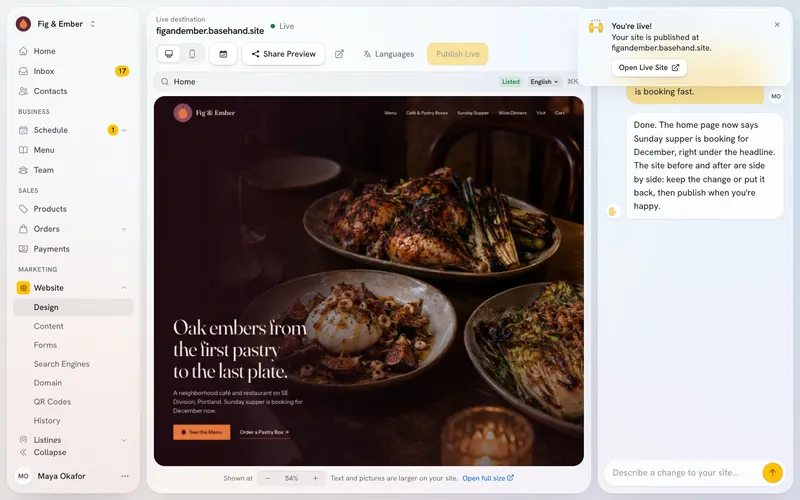 WebsiteDesigned by AI, changed by asking
-
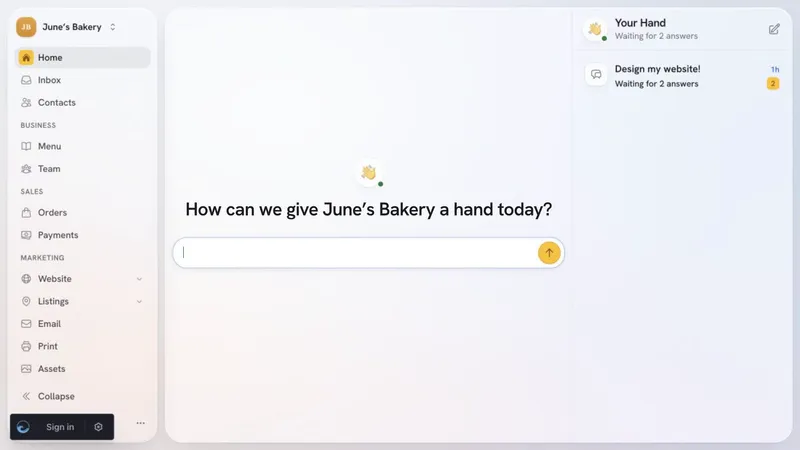 The HandYour AI assistant, asks before acting
-
 Online bookingAppointments, classes and events
-
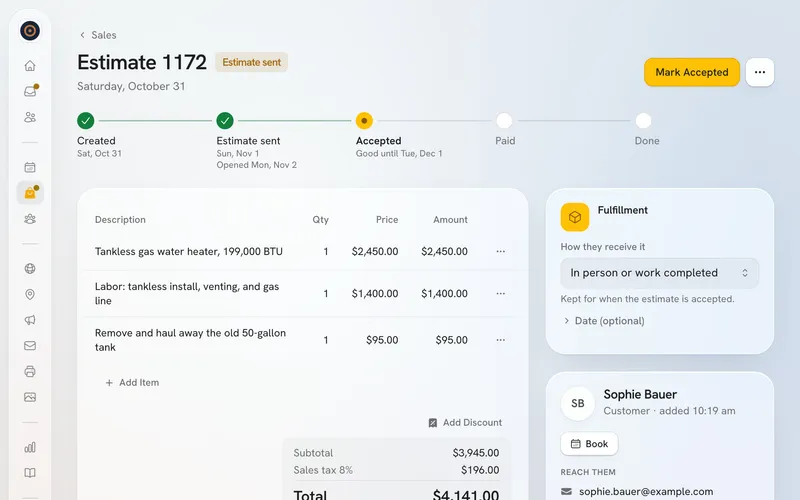 Payments and invoicesStripe, invoices, gift cards, books
-
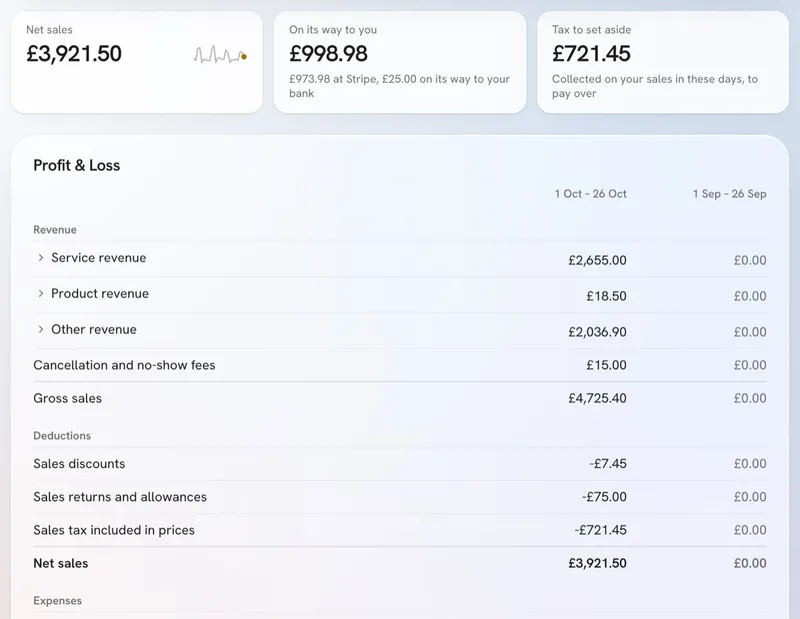 AccountingBank feeds, expenses, and reports
-
 Online storePickup, delivery or shipping
-
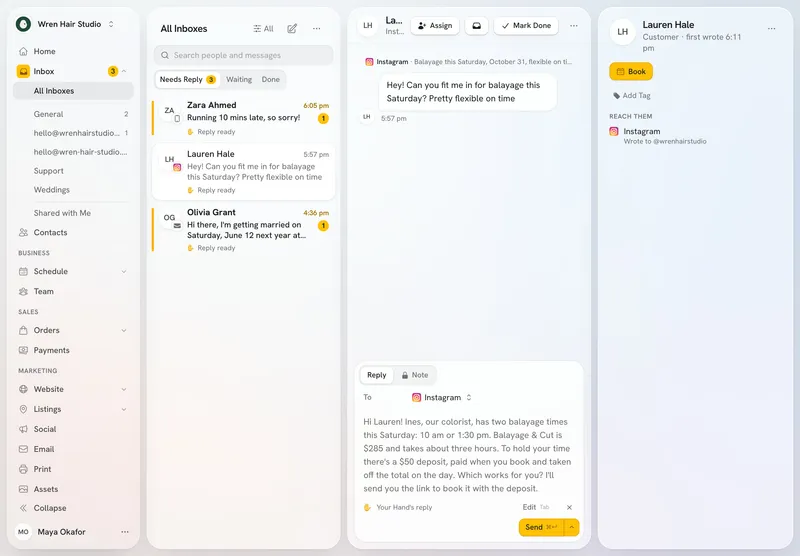 InboxEmail, Instagram, Facebook and forms
-
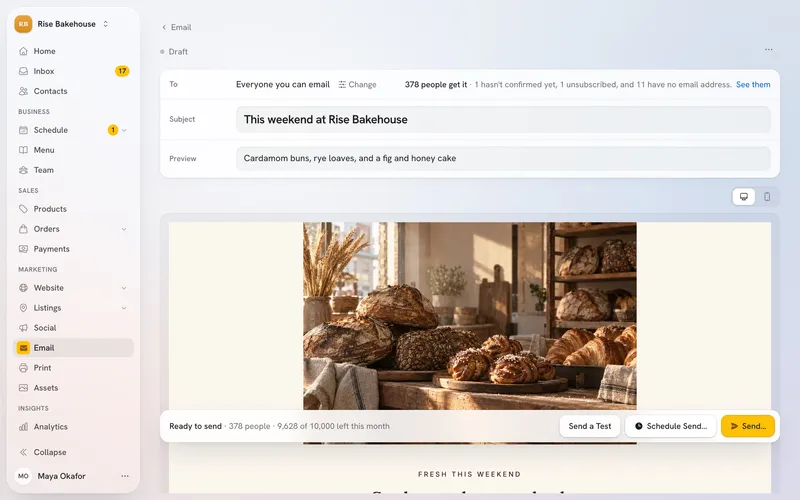 MarketingSocial, email, reviews and print
-
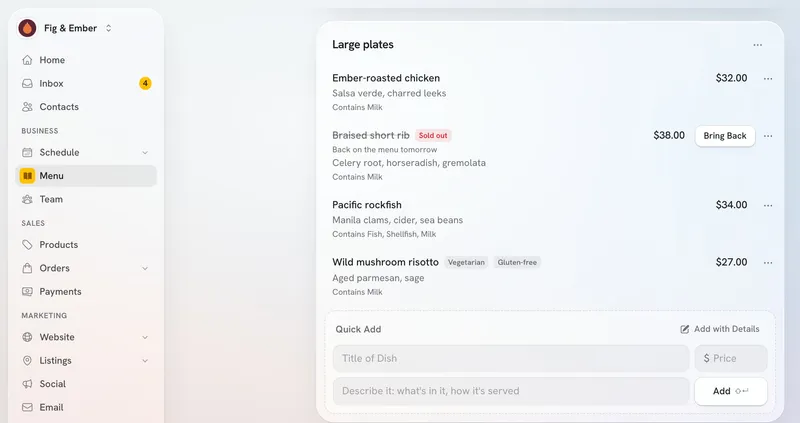 MenusOnline and printed, from one list
Give your schedule an extra hand,so you can get back to running the place.