 Basehand
November 4, 2026
Follow up with customers on time, and reply faster
Follow-ups
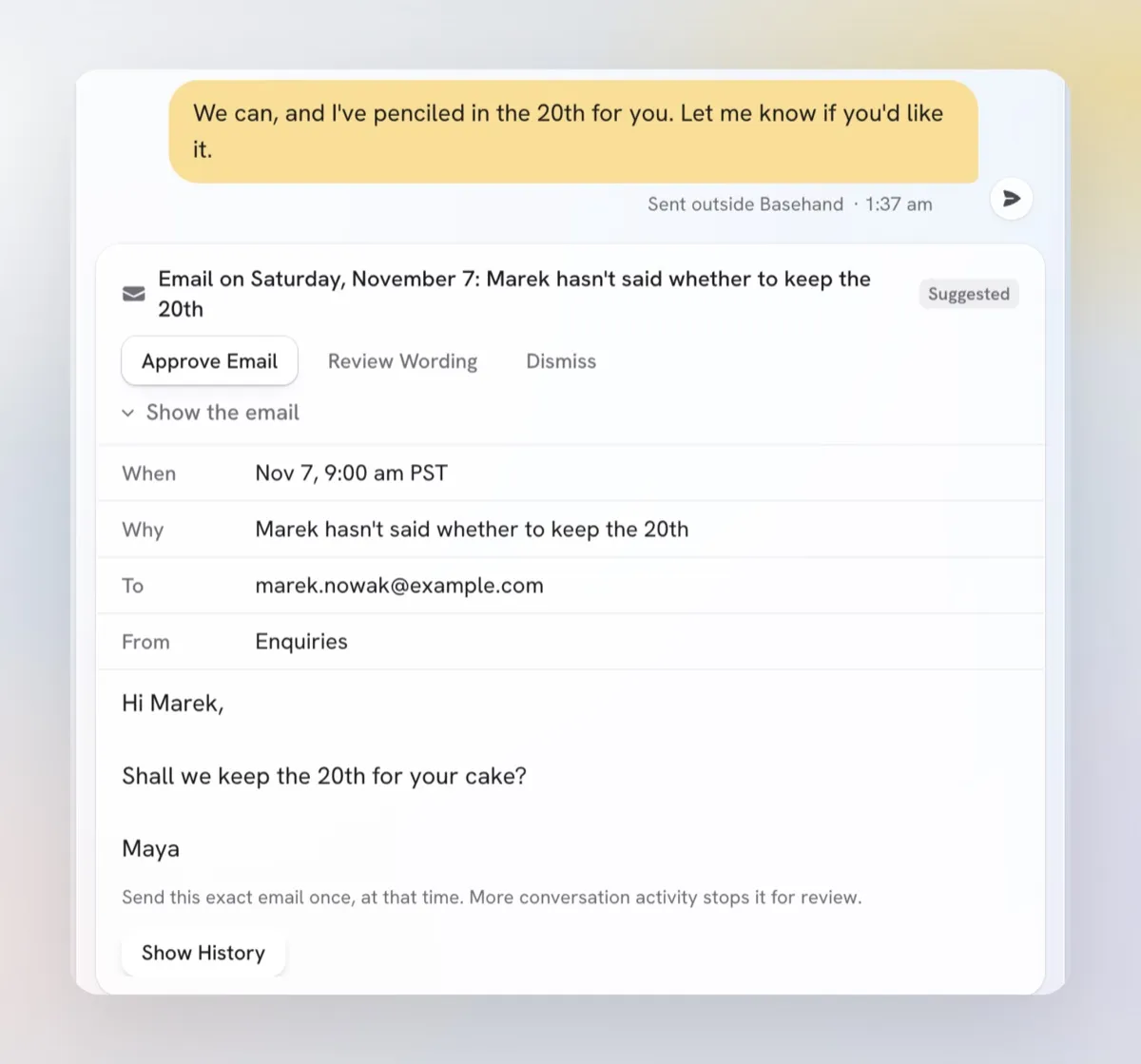
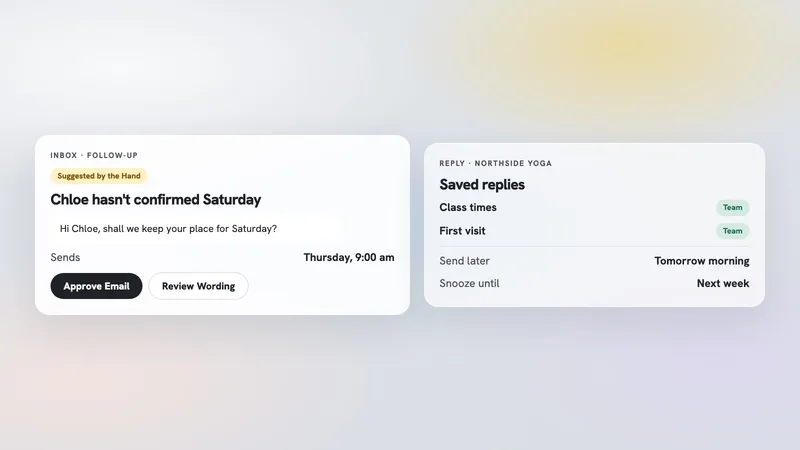
The Hand notices when you should write to a customer again: a promise to keep, an offer left waiting, or a reminder they asked for.
It writes the email and suggests when it should go, on a date or when a sold-out product is back in stock.
Read it beside the conversation, change the words, and approve it. Nothing goes until an owner or manager says so.
If the customer writes first, it stops and waits for you to look again.
Home shows which follow-ups need you.
More in the Handbook: what an AI assistant should and shouldn't do for your business.
Faster replies in the Inbox
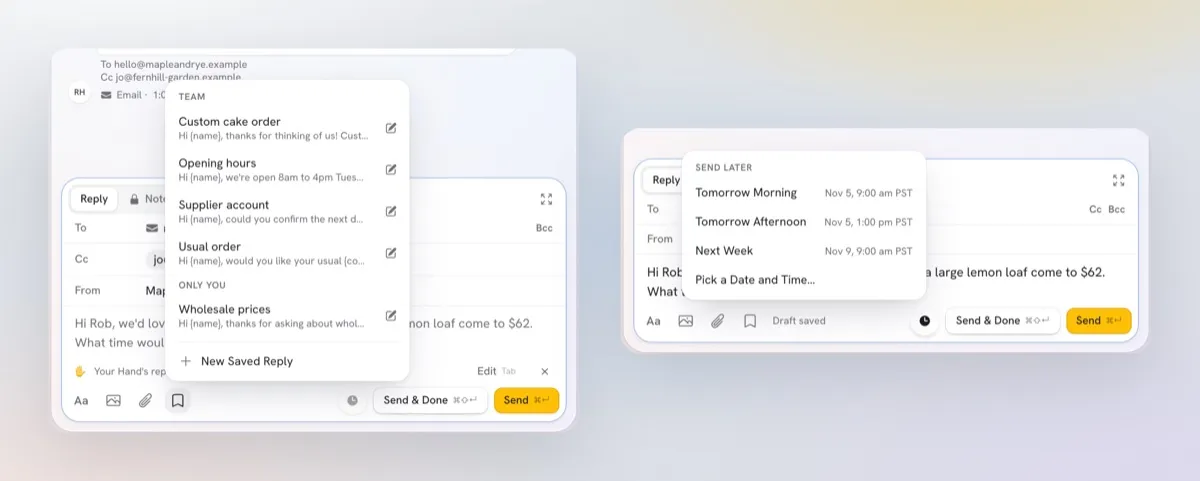
Save the replies you write again and again, for your whole team or just for you. They fill in the customer's name for you.
Send Later holds your reply for tomorrow morning, next week, or any time you pick. If the customer writes first, it comes back to you as a draft.
Snooze a conversation until a time you choose. It waits under the Snoozed tab, and comes back sooner if the customer writes.
Drafts in the sidebar lists the replies you started and didn't send.
Expand the reply box over the page to write a long email.
See when an email you sent was opened. It's a good sign, not proof: some email apps load pictures on their own, and others block them.
More in the Handbook: how to answer Instagram, Facebook, and email messages in one place.
Products, one part at a time
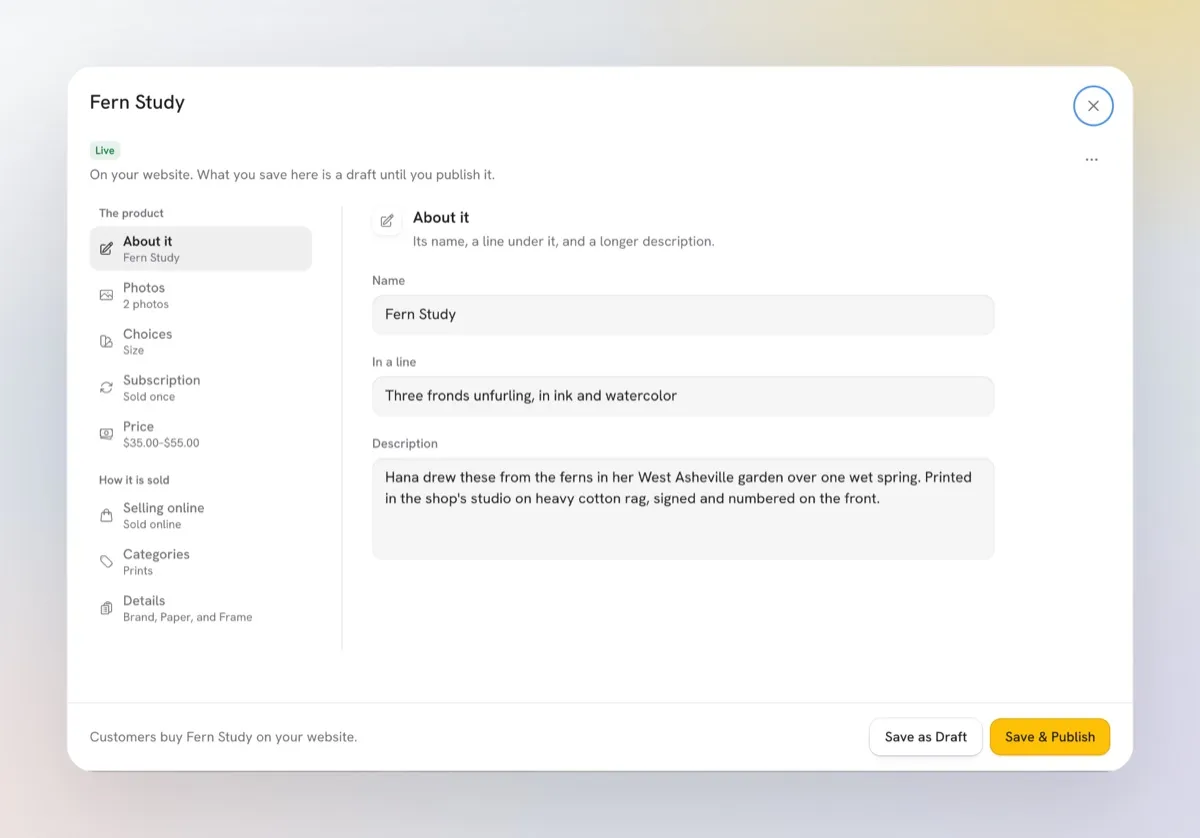
A product now opens in a dialog on the Products page, one part at a time, with a list down the side.
Each part says in a line what is set in it, so you can see the whole product at a glance.
Also
Share a link that books with one person on your team. Whether customers choose who they book with is now set on each booking type.
Click an empty photo space in your website's preview to add a photo.
Printed PDFs look the same in every reader.