 Basehand
Your business
How to update your holiday hours everywhere at once
A customer who drives to a closed door on December 26 doesn't come back happy. How to plan your holiday hours and make sure Google, your website, and your bookings all say the same thing.
Most customers check your hours on Google before they set off, and many will believe whatever it says. If you close for a holiday and your listing still says you're open, someone will find out the hard way. Your hours are probably written in more places than you think, and over the holidays every one of them needs to be right.
Decide your hours early
Sit down in November with a calendar and settle every change at once. For each day, decide whether you're closed, open with different hours, or open as usual.
The days that catch businesses out are rarely the holidays themselves. They're the days around them: Christmas Eve, the days between Christmas and New Year, and New Year's Eve. Customers have no way to guess what you'll do on those days, so they're the ones to state clearly.
While you're at it, ask your team about time off. Holiday hours and staff holidays are easier to settle together than one after the other.
Know where your hours are written
Make a list of every place a customer might read your hours. For most small businesses it looks something like this:
Your Google Business Profile, which feeds Google Search and Google Maps
Your website
Your online booking, which decides what times customers can pick
Apple Maps, Yelp, and any other directories you're listed on
Your Facebook Page and Instagram profile
Delivery or reservation apps
Your phone's voicemail message and your email's automatic reply
The sign on your door
Each one you miss is a place someone can be told the wrong thing.
Start with Google
If you only update one place, make it your Google Business Profile. It's where most people see your hours, often without ever visiting your website, and keeping it right also helps you show up on Google Maps.
Google lets you set special hours for particular dates. They show for those days only, and your regular hours come back on their own afterward, so you don't have to remember to change anything in January. Set them as soon as you've decided rather than the day before. Google may take a little while to show a change.
Make your booking match your hours
This is the one that causes real trouble. If your online booking doesn't know you're closed, customers will book appointments you can't keep, and you'll spend the run-up to the holidays calling people to cancel.
Block out the closed days in your booking system, and check for anything already booked on those days. Contact those customers early with a new time. They'll take it far better in November than the night before.
Tell your customers
Updating your listings means people who look will find the right answer. Telling them means fewer people need to look.
Send a short email with your holiday hours in early December, and mention gift cards if you sell them
Post them on social media, and pin the post if you can
Put a sign on the door and by the till a couple of weeks ahead
Add a line to appointment confirmations and reminders for the weeks around the holidays
Keep the message plain: the dates, the hours, and when you're back to normal.
Do it once for every public holiday
Christmas isn't the only day you close. Most businesses also close or change hours for a handful of public holidays through the year, and each one needs the same care. Rather than working them out one at a time, decide once which ones you close for, and put the whole year in at the start.
Check after the holiday
When you're back, look at your Google listing and your website, and try booking an appointment. Make sure your regular hours came back everywhere. A listing still showing "Closed" in the second week of January costs you customers just as surely as one showing "Open" on Christmas Day.
Wording you can copy
Copy any of these and change the words in square brackets. The dates are this year's, so check them against your own hours.
Email to your customers
Subject: Our holiday hours

Hi [first name],

Here are our hours over the holidays, so you can plan your visit:

Thursday, December 24: [9am to 2pm]
Friday, December 25: Closed
Saturday, December 26: [Closed]
Thursday, December 31: [9am to 4pm]
Friday, January 1: Closed

We're back to our usual hours from [Saturday, January 2].

[Want to come in before the break? Book here: booking link]

Happy holidays from all of us at [business name]
Social post
Our holiday hours

Christmas Eve, Thu Dec 24: [9am to 2pm]
Christmas Day, Fri Dec 25: Closed
Sat Dec 26: [Closed]
New Year's Eve, Thu Dec 31: [9am to 4pm]
New Year's Day, Fri Jan 1: Closed

Back to our usual hours from [Sat Jan 2]. Book before the break at [link].
Sign for the door
HOLIDAY HOURS

Thu Dec 24: [9am to 2pm]
Fri Dec 25: Closed
Sat Dec 26: [Closed]
Thu Dec 31: [9am to 4pm]
Fri Jan 1: Closed

Usual hours from [Sat Jan 2]
Book online any time at [your website]
Line for confirmations and automatic replies
A note for the holidays: we're closed on [December 25 and 26] and [January 1], and open [9am to 2pm] on [December 24 and 31]. Messages sent while we're closed will be answered on [the next day we're open].
How Basehand helps
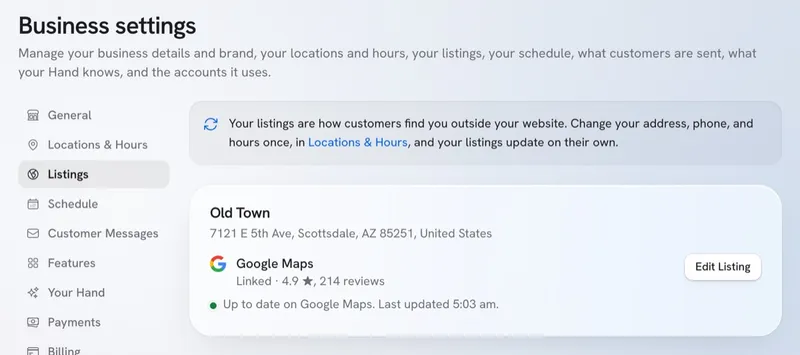
In Basehand, you set holiday hours once, in Settings under Locations & Hours. For a day or a run of days, you choose whether you're closed, open with different hours, or open all day, and add a reason if you like. Changes end on their own after their last day.
For public holidays, you pick the ones you close for from your country's list, including your state's or region's where your address names one. Basehand adds a closure for each over the coming year and keeps adding them as the year moves on.
Once a change is saved, it reaches everywhere Basehand looks after:
Google. With your location linked to its Google listing, Basehand sends the change to Google as special hours, a few seconds after you save it.
Your website. The hours your site gives search engines change, and a site Basehand designs shows upcoming changes beside your regular hours.
Online booking. Customers can't book times when you're closed.
Pickup. If you sell online with pickup, closed days aren't offered.
Other directories, social profiles, and the sign on your door are still yours to change. Each November and December, Basehand's Home page also reminds you to set your holiday hours if you haven't yet.